Word cross-references for sources: numbering, superscript, and updates
This guide explains the manual workflow: endnote numbering, cross-reference settings, updating numbers after editing sources, and fixing excessive spacing. If you prefer, you can also export a Word document with its citations already inserted.
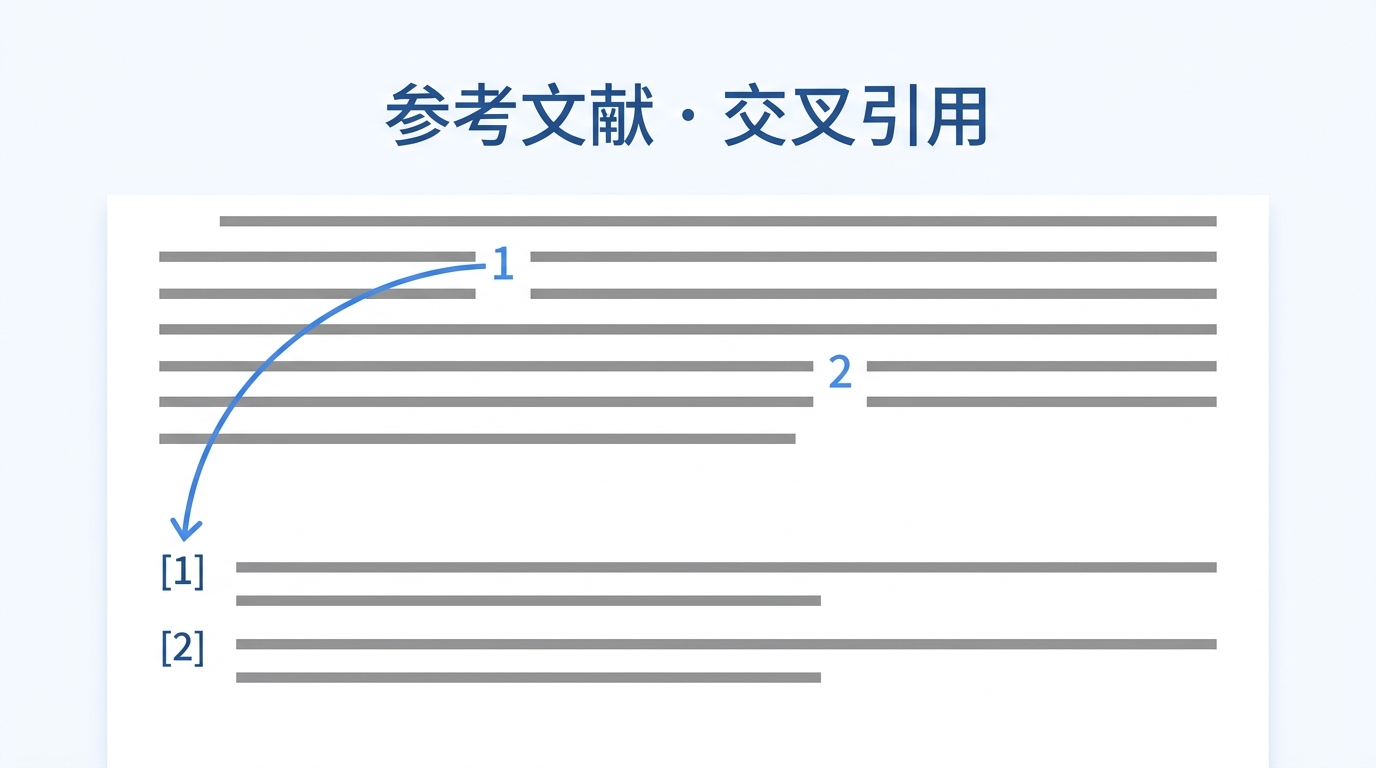
The manual method: insert and link references in four steps
1Put sources in endnotes so Word maintains the numbering
Place the cursor where the citation belongs, choose References → Insert Endnote, and enter the source in the endnote area. Endnote numbers reorder automatically as sources change, unlike numbers typed by hand. You can also build the bibliography with a numbered list and captions.
2Link in-text numbers to sources with cross-references
Where [1] should appear, choose References → Cross-reference. Set the reference type to Endnote and insert the formatted endnote number. The in-text number is now linked to the source and will change when sources are added or removed.
3Press F9 to update the whole document after changing sources
Numbers do not refresh immediately after you add or remove a source. Press Ctrl+A to select the document, then F9 to update fields and align every endnote number and cross-reference. Update once more before printing or exporting.
4Fix excessive spacing and misaligned numbers
A large gap after bibliography numbers usually comes from a tab. Select the list and shorten the tab stop or replace it with a space. Misalignment after [10] usually means the hanging indent is wrong; set a consistent hanging indent in the paragraph settings.
Frequently asked questions
What is a cross-reference?
A cross-reference is a Word feature that connects one part of a document, such as [1] in the text, to another, such as endnote 1. If the source's number changes, the in-text number can update automatically. For references, it binds the citation marker to the bibliography entry.
How can I number references automatically in Word?
Put each source in an endnote with References → Insert Endnote, or use an automatically numbered list. Word maintains and reorders the numbers. Link in-text markers to endnote numbers with cross-references so both update together.
How do I remove the large space after a reference number?
The number is probably followed by a tab. Select the bibliography, open the paragraph tab settings, and shorten or remove the default tab stop. A hanging indent can also align entries while leaving only one space after the number.
Why did earlier numbers not change after I added a source?
Word does not refresh every field in real time. Press Ctrl+A, then F9 to update the endnote numbering and every cross-reference. Repeat this before exporting or printing.
Can I manually turn consecutive citations into [1-3]?
It is better not to merge ranges manually. After sources change, a typed hyphen cannot determine whether the numbers are still consecutive. Use a reference manager or Word citation fields to insert citation ranges consistently.
Can I export a Word document with citations inserted instead of doing this manually?
Yes. Citation Finder can match real sources to paragraphs and export a Word file with citations at the relevant claims and a generated bibliography. The citations remain compatible with EndNote and Zotero, styles such as GB/T 7714 and APA can be switched, and source records remain editable.